- Mail Address info@velnustech.com
- Phone Number +91-90990-05498
Contact Info
- C-1024, Siddhivinayak Tower, Kataria Automobile Road Makarba, Ahmedabad - 380051
- +91 90990 05498
- info@velnustech.com
- Week Days: 09.00 to 18.00 Sunday: Closed
Top 7 Excellent Video Editing App In 2026? Apps For Beginners, Freelancers, And Small Businesses.
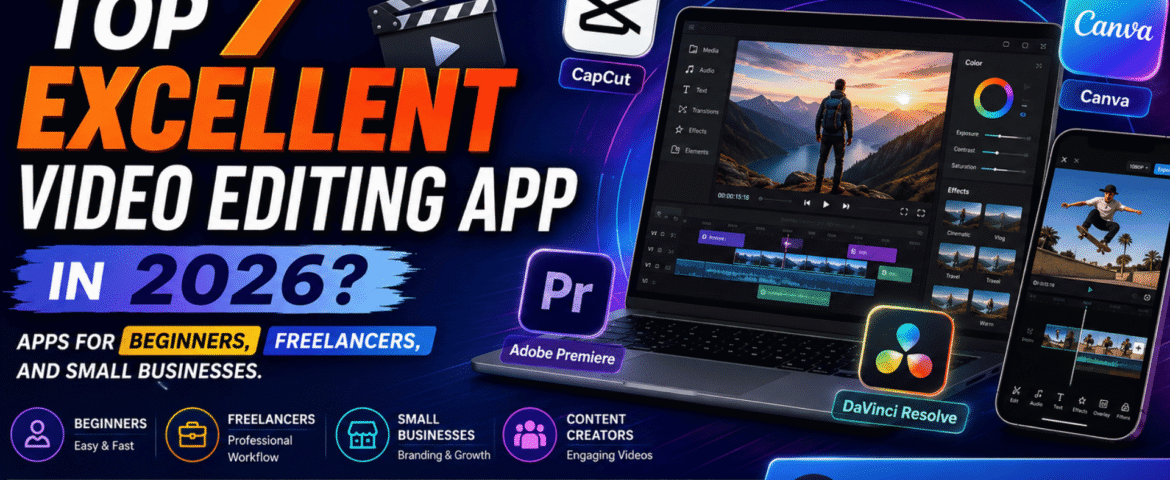
The best video editing app depends on what you want to be. Capcut is a good app for beginners and quick social media videos. Canva is great for content from larger businesses. Adobe Premiere is a great option for freelancers who need professional tools, while DaVinci Resolve is a great option if you want powerful professional features with a capable free version.
Finding a perfect app isn’t as important as finding a budget-friendly app and it’s also about matching the editor to your skill level, device, budget, content type, and workflow.
What is a video editing application?
A video editing application is a software that allows you to import video clips, arrange them in time, remove sections you don’t like, add text and captions, add audio, arrange audio, apply transitions and effects, and export the finished video.
Modern video editing applications can do much more than basic cutting.
Many now include features such as:
- Auto captions
- AI-powered editing
- Background removal
- Noise reduction
- Color correction
- Templates
- Text-to-speech
- Video resizing
- Motion graphics
- AI-generated video
- Social media exports
For example, CapCut provides editing tools such as transitions, filters, transcription, color correction, background removal and AI-powered features.
Canva combines video editing with design features, including text animation, transitions, effects, video resizing and AI-assisted tools.
Professional applications such as Adobe Premiere and DaVinci Resolve go further with advanced editing, color, audio, effects and post-production workflows.
Which Video Editing App Is Best in 2026?
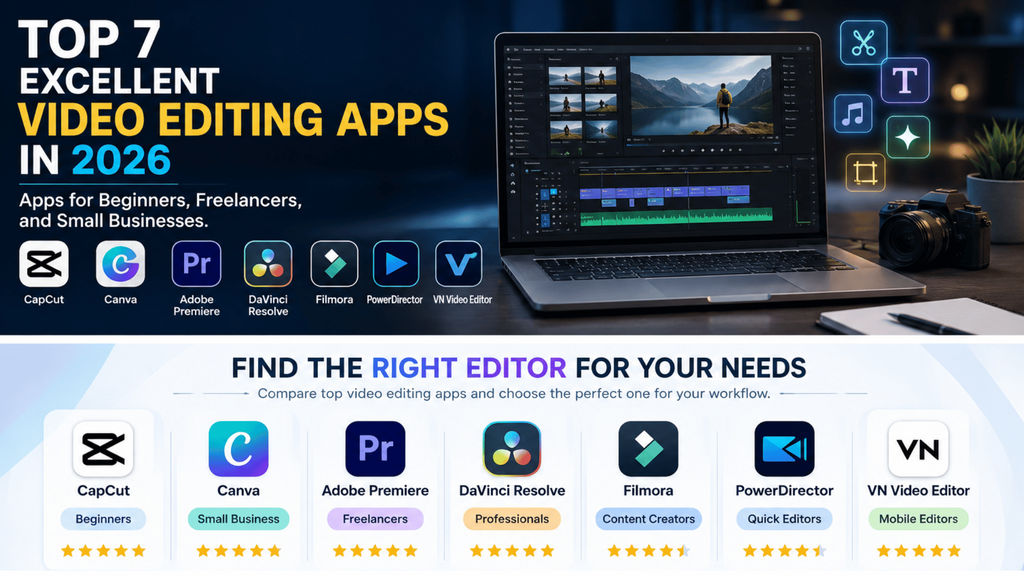
There’s no one winner for everyone.
| User | Recommended app | Why? |
|---|
| Beginner | CapCut | Easy workflow and ready-made tools |
| Social media creator | CapCut | Fast editing, templates and captions |
| Small business | Canva | Branding + video + design in one workflow |
| Freelancer | Adobe Premiere | Professional editing and client-ready workflow |
| Professional editor | DaVinci Resolve | Editing, color, VFX and audio |
| Budget-conscious creator | DaVinci Resolve | Powerful free version |
| Marketing team | Canva | Easy collaboration and branded content |
These recommendations are based on the different workflows of these platforms, not just how they advertise.
What is the best video editing app for beginners?
For a complete beginner, CapCut is one of the easiest places to start.
Its workflow is built around importing media, selecting templates when needed, editing clips, adding effects or text, and exporting the final video. CapCut also provides tools for captions, transitions, filters and AI-assisted editing.
Why is CapCut beginner-friendly?
A beginner usually wants to answer four questions quickly:
- How do I import my video?
- How do I cut unwanted parts?
- How do I add text or captions?
- How do I export the final video?
CapCut provides a straightforward workflow for these basic tasks.
It’s particularly useful when your goal is to create:
- Instagram Reels
- Short videos
- YouTube Shorts
- Product clips
- Promotional videos
- Talking-head videos
- Simple tutorials
The biggest advantage for a beginner is speed: you can learn basic editing concepts without first learning a complicated professional post-production environment.
Which Video Editing App Is Best for Small Businesses?
For small businesses, Canva can be an excellent choice when video editing and branding need to happen together.
A business often needs more than video editing. You may also need:
- Logo placement
- Brand colors
- Promotional graphics
- Product information
- Text overlays
- Social media designs
- Advertisements
- Presentation content
Canva’s video tools support trimming, splitting, transitions, text, effects, filters, music and resizing. Its platform also combines video with broader design capabilities.
Why does branding matter in business videos?
Imagine a local restaurant creating a 20-second Instagram Reel.
The video may need:
Opening: Product shot
Middle: Product benefits or offer
Branding: Logo + colors
Ending: Call to action
Instead of creating every element in separate software, a design-oriented platform can simplify the process.
For small businesses, the goal isn’t necessarily to produce a Hollywood-style video. The goal is often to produce clear, branded and consistent content quickly.
Which video editing app is best for freelancers?
For freelancers handling client projects, Adobe Premiere is a good professional option.
Premiere offers tools for frame-accurate editing, layered audio, color correction, effects, titles, and an AI-assisted workflow. Its current feature set includes tools like text-based editing, media intelligence, object masks, enhanced speech, and auto-reframe.
Here’s the copyright-protected, original version of your content:
Why is professional software important for freelancers?
Freelancers often work on a variety of projects, including:
- YouTube videos
- Corporate presentations
- Commercial advertisements
- Interview recordings
- Product showcase videos
- Social media content
- Long-form video projects
- Multiple rounds of client feedback
Professional editing software goes beyond basic template-based editing, providing the flexibility and precision needed to meet individual client needs.
For example, Adobe Premiere Pro includes text-based editing, allowing editors to create rough cuts by editing automatically generated transcripts instead of manually trimming footage.
It also offers AI-powered features that simplify repetitive tasks, such as finding specific clips, improving speech quality, creating subject masks, and resizing videos for different platforms, allowing freelancers to work faster while maintaining professional results.
Is DaVinci Resolve a good option for professional video editing?
Yes. DaVinci Resolve is considered one of the best professional video editing applications, especially for creators who want advanced features without paying for a monthly subscription.
Created by Blackmagic Design, DaVinci Resolve combines video editing, color grading, visual effects, motion graphics, and audio production in a single software package. Its free version offers powerful editing capabilities, including support for 8-bit video formats, frame rates up to 60 fps, and Ultra HD (3840 × 2160) resolution.
Why should beginners learn DaVinci Resolve?
Although DaVinci Resolve is more difficult to learn than many beginner-friendly editors, mastering it provides valuable skills for professional video production. This software uses dedicated workspaces that help organize every stage of the editing process, including:
- Media Management
- Video Editing
- Visual Effects with Fusion
- Color Correction and Grading
- Audio Editing with Fairlight
- Export and Delivery
For anyone planning a career in video editing, learning DaVinci Resolve can be a smart investment. Its professional workflow and extensive feature set make it perfect for everything from personal projects to commercial productions.
Is DaVinci Resolve a good option for professional video editing?
Yes. DaVinci Resolve is considered one of the best professional video editing applications, especially for creators who want advanced features without paying for a monthly subscription.
Created by Blackmagic Design, DaVinci Resolve combines video editing, color grading, visual effects, motion graphics, and audio production in a single software package. Its free version offers powerful editing capabilities, including support for 8-bit video formats, frame rates up to 60 fps, and Ultra HD (3840 × 2160) resolution.
Why should beginners learn DaVinci Resolve?
Although DaVinci Resolve is more difficult to learn than many beginner-friendly editors, mastering it provides valuable skills for professional video production. This software uses dedicated workspaces that help organize every stage of the editing process, including:
- Media Management
- Video Editing
- Visual Effects with Fusion
- Color Correction and Grading
- Audio Editing with Fairlight
- Export and Delivery
For anyone planning a career in video editing, learning DaVinci Resolve can be a smart investment. Its professional workflow and extensive feature set make it perfect for everything from personal projects to commercial productions.
What are the best video editing apps?
- CapCut — Best for beginners and short-form content
CapCut is a practical choice for those who want to start editing quickly.
Its official video editor includes templates, filters, transitions, transcription, color correction, background removal, and AI-powered tools.
Best for:
Beginners
Reels
Shorts
TikTok-style content
Quick promotional videos
Mobile-first creators
Key advantage: Fast learning.
Potential limitation: Advanced professional workflows may eventually require more specialized software.
How to Download CapCut in india
- Install a reliable VPN app (such as ProtonVPN or SuperVPN) from the Google Play Store.
- Open your mobile browser and search for a trusted source like CapCut APK Mirror or CapCut Uptodown.
- Download the standard APK file (avoid bundle versions to make installation easier).
- Enable installation from unknown sources in your phone settings and install the APK.
- Turn on your VPN, select a server outside India (like France, Singapore, or Canada), and then open CapCut to use it.
- Canva — Best for branded business videos
Canva is especially useful if video is just one part of your marketing workflow.
You can combine video clips with graphics, text, brand elements, animations, and other marketing assets.
Canva also offers video trimming, transitions, effects, text, and resizing features.
Best for:
Small businesses
Social media managers
Marketing teams
Promotional videos
Branded content
Beginners
Key benefit: Video + graphic design workflow.
Potential drawback: Professional editors may eventually need more granular timeline, color, and audio controls.
Adobe Premiere is designed for professional video editing and offers advanced tools for editing, color, audio, effects, and titles.
Its AI capabilities can also reduce repetitive editing tasks.
Best for:
Freelancers
Agencies
Professional Editors
YouTube Professionals
Commercial Projects
Client Work
Key Advantage: Professional control and advanced workflow.
Potential Disadvantage: Requires a steeper learning curve than an editor geared toward beginners.
- DaVinci Resolve — The Best Free Professional Option
DaVinci Resolve is especially good for creators who want advanced features without a paid subscription.
Its free version includes editing, color, and other professional post-production functions, while Studio offers more advanced features.
Best for:
Serious Beginners
Freelancers
Professional Editors
Color Grading
Film Projects
Long-Form Content
Key Advantage: Powerful Free Version.
Potential limitation: More complex interface and workflow.
How Do These Video Editing Apps Compare?
| Feature | CapCut | Canva | Adobe Premiere | DaVinci Resolve |
| Beginner friendly | Excellent | Excellent | Moderate | Moderate |
| Short-form content | Excellent | Excellent | Excellent | Good |
| Business branding | Good | Excellent | Good | Good |
| Professional editing | Good | Moderate | Excellent | Excellent |
| Color grading | Good | Basic | Advanced | Excellent |
| AI tools | Strong | Strong | Strong | Strong |
| Templates | Excellent | Excellent | Good | Good |
| Free option | Yes | Yes | Trial/paid plans | Yes |
| Best use | Reels & quick content | Business content | Client work | Professional editing |
The exact features and plan limits can change over time, so check the vendor’s current plan before purchasing.
Which Video Editing App Is Best for Instagram Reels?
For beginners creating Instagram Reels, CapCut or Canva is usually the most practical starting point.
The key requirement isn’t complicated editing. It’s creating a video quickly in a vertical format while keeping the content visually clear.
A simple Reel workflow is:
Hook → Main content → Visual change → CTA
For example:
0–3 seconds: “3 mistakes small businesses make on Instagram”
3–15 seconds: Explain the mistakes.
15–25 seconds: Show examples.
25–30 seconds: Add CTA.
Don’t overload the Reel with transitions. Good pacing and clear messaging usually matter more than adding effects everywhere.
Which Video Editing App Is Best for YouTube?
For simple YouTube videos, several editors can work.
Beginners
Start with CapCut or Canva.
Freelancers and serious creators
Adobe Premiere is a strong option.
Creators who want professional tools without an immediate subscription
DaVinci Resolve is worth learning.
For long-form YouTube content, pay particular attention to:
- Audio quality
- Cutting pauses
- Story structure
- B-roll
- Captions
- Color consistency
- Thumbnail design
- Export quality
A sophisticated editor cannot fix a weak story.
Which Video Editing App Is Best for Business Ads?
For business advertisements, the best choice depends on how sophisticated the production needs to be.
For a simple local business ad, Canva or CapCut may be enough.
For an agency-produced commercial, Premiere or DaVinci Resolve gives you more control.
A basic business ad should follow this structure:
Step 1: Show the problem
“Still spending hours replying to customer messages?”
Step 2: Introduce the solution
“Automate your customer conversations.”
Step 3: Show the product
Use screen recordings or product footage.
Step 4: Explain the benefit
“Save time and respond faster.”
Step 5: Add a CTA
“Book a free demo today.”
The editing app is important, but the message and offer are more important.
What Features Should You Look for in a Video Editing App?
Don’t choose an app just because it has hundreds of effects.
Focus on features that improve your workflow.
1. Timeline editing
A timeline lets you arrange clips, audio, text and effects in the correct sequence.
2. Trimming and splitting
These are the basic editing operations you’ll use constantly.
3. Captions
Captions are especially useful for short-form social content and viewers who watch videos without sound.
4. Audio editing
Look for tools that allow you to control:
- Voice volume
- Background music
- Noise
- Sound effects
- Audio fades
5. Color correction
Basic color correction can make clips look more consistent.
6. Aspect ratio controls
Different platforms require different formats.
For example:
9:16 → vertical short-form content
16:9 → standard YouTube-style landscape video
1:1 → square social content
7. Export controls
Check whether the application supports the resolution, frame rate and format you need.
8. AI tools
AI can help with tasks such as:
- Captions
- Transcription
- Background removal
- Speech enhancement
- Clip selection
- Video resizing
- Search
- Generative content
But AI should accelerate your editing—not replace your creative judgment.
How Do You Choose the Right Video Editing App?
Use this simple decision framework.
Are you completely new to editing?
Start with CapCut or Canva.
Do you mainly create social media content?
Choose CapCut if speed and short-form editing are your priority.
Do you create branded business content?
Choose Canva if you need video and graphic design together.
Are you a freelancer?
Consider Adobe Premiere if your projects require professional editing and client workflows.
Do you want professional editing without immediately paying?
Try DaVinci Resolve.
Do you want to become a professional editor?
Spend time learning DaVinci Resolve or Adobe Premiere rather than switching between multiple beginner apps.
How Do You Edit a Video as a Beginner?
You don’t need to learn every feature on day one.
Follow this simple workflow.
Step 1: Collect your footage
Put all video clips, images, logos and audio in one folder.
Step 2: Create a new project
Choose the correct aspect ratio before you start.
For a Reel, use a vertical 9:16 workflow.
For a standard YouTube video, use 16:9.
Step 3: Remove unnecessary footage
Delete:
- Long pauses
- Mistakes
- Repeated sentences
- Shaky sections
- Unnecessary introductions
Step 4: Arrange the story
Don’t simply place clips in the order they were recorded.
Ask:
“What does the viewer need to see next?”
Step 5: Add captions
Make important spoken information readable.
Step 6: Fix the audio
Your viewer may forgive average video quality, but poor audio can make a video difficult to watch.
Keep dialogue clear and prevent music from overpowering the voice.
Step 7: Add branding
For business videos, consider adding:
- Logo
- Brand colors
- Font
- Website
- CTA
Step 8: Export
Check:
- Resolution
- Aspect ratio
- Frame rate
- Audio
- File format
Then watch the exported file before publishing.
What Are the Common Video Editing Mistakes to Avoid?
Using too many transitions
Every clip doesn’t need a flashy transition.
Simple cuts often look cleaner.
Making captions too small
If viewers have to struggle to read your text, the caption has failed.
Making music louder than speech
Voice should remain easy to understand.
Adding too many effects
Effects should support the story rather than become the story.
Ignoring the first few seconds
The opening should immediately communicate why the viewer should continue watching.
Editing without a goal
Before opening your editor, decide:
Who is this video for?
What should they understand?
What should they do afterward?
Choosing software based only on features
A beginner doesn’t need 500 advanced features.
You need the features that solve your actual problem.
Are Free Video Editing Apps Good Enough?
Yes, for many users.
A free editor can be enough for:
- Reels
- Shorts
- Basic YouTube videos
- Product videos
- Tutorials
- Social media posts
- Simple advertisements
DaVinci Resolve is a particularly notable example because its free version provides a substantial professional editing environment.
However, paid plans can become useful when you need additional features, assets, AI credits, collaboration capabilities or advanced production workflows.
The better question isn’t:
“Is free software good?”
It’s:
“Does the free version provide everything I need?”
What Is the Best Video Editing App for You?
If you want the simplest answer:
For beginners: CapCut
For small business branding: Canva
For freelancers: Adobe Premiere
For professional editing on a budget: DaVinci Resolve
But don’t choose an application because someone called it “the best.”
Choose based on your workflow.
A person creating a 20-second Instagram Reel doesn’t need the same tool as a freelancer editing a 30-minute client documentary.
The best video editing app is the one that lets you create the content you need efficiently, consistently and at the quality your audience expects.
Also Read : https://velnustech.com/digital-business-growth/
Conclusion
Choosing the best video editing app in 2026 is not about finding a single “perfect” tool, but about selecting the right app for your specific needs and skill level. Beginners can start easily with CapCut, small businesses can benefit from Canva’s all-in-one design and video features, freelancers can rely on Adobe Premiere for professional client work, and advanced users or budget-conscious creators can explore DaVinci Resolve for powerful free editing capabilities.
Each app has its own strengths and limitations, but the real success in video editing comes from understanding storytelling, pacing, audio quality, and audience engagement rather than depending only on software features.
In the end, the best video editing app is the one that helps you create content consistently, efficiently, and at the quality your audience expects.
Frequently Asked Questions
What is the best video editing app for beginners?
CapCut and Canva are strong beginner-friendly options. CapCut is particularly useful for quick social videos, while Canva is useful when video needs to be combined with graphics and branding.
What is the best free video editing app?
DaVinci Resolve is one of the strongest free options for users who want professional editing capabilities. Its free version supports a substantial range of editing and post-production workflows.
Which video editing app is best for mobile?
For mobile-first short-form editing, CapCut is a practical option. Canva is another useful choice when you need video plus design and branding.
Is CapCut good for beginners?
Yes. CapCut provides a relatively accessible workflow with templates, trimming, effects, captions, transitions and AI-assisted features.
Is Canva good for video editing?
Yes. Canva provides trimming, splitting, transitions, effects, text, filters and other video editing capabilities, while also integrating video with graphic design.
Leave A Comment