
- Mail Address info@velnustech.com
- Phone Number +91-90990-05498

Contact Info
- C-1024, Siddhivinayak Tower, Kataria Automobile Road Makarba, Ahmedabad - 380051
- +91 90990 05498
- info@velnustech.com
- Week Days: 09.00 to 18.00 Sunday: Closed
automated workflows
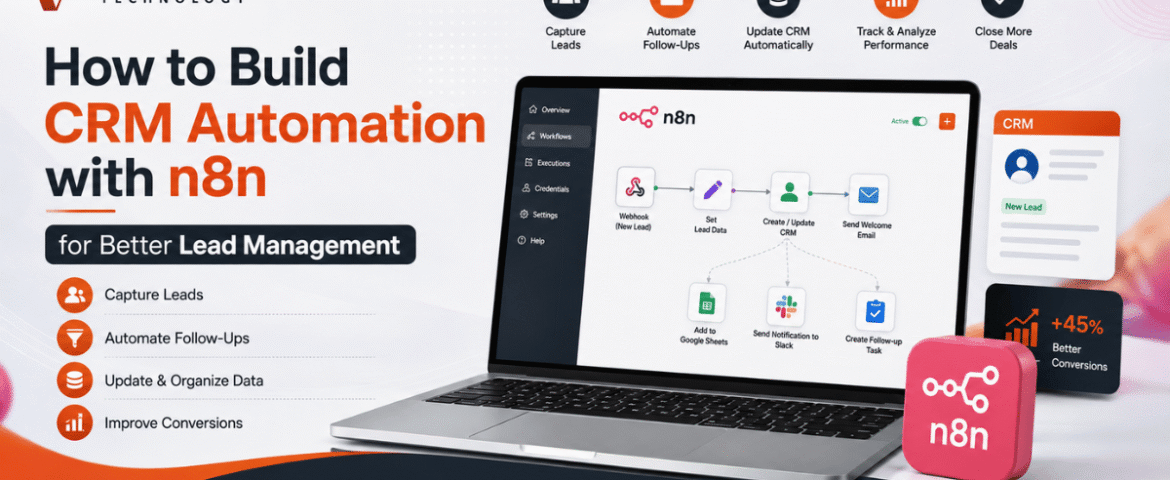
How to Build CRM Automation with n8n for Better Lead Management
- By KHUSHI LIMBASIYA
- 0 Comments
- technology Latest News
Generating and managing leads manually is one of the biggest challenges for growing businesses. As the number of inquiries increases, manually updating customer records, assigning follow-ups, and sending emails becomes time-consuming and prone to errors. This is where CRM Automation becomes a game changer. With n8n, businesses can automate repetitive CRM tasks without relying on expensive enterprise software or complex coding. Whether leads come from contact forms, social media campaigns, WhatsApp, Google Sheets, landing pages, or email, n8n can connect multiple platforms and automatically manage every step of the lead lifecycle. In this guide, you’ll learn how to build CRM Automation with n8n, create automated lead management workflows, improve response times, reduce manual work, and increase conversion rates. Why CRM Automation Matters Every business receives leads from different sources. Without automation, teams often face problems such as: CRM Automation removes these issues by automatically capturing, organizing, qualifying, and tracking leads. Some major advantages include: What is n8n? n8n is an open-source workflow automation platform that allows users to connect applications through visual workflows. Instead of writing lengthy code, users create automation using drag-and-drop nodes. n8n supports hundreds of integrations including: Its flexibility makes it one of the most powerful automation tools for CRM Automation. Why Use n8n for CRM Automation? Unlike traditional automation platforms, n8n provides complete workflow customization. Benefits include: No-Code and Low-Code Automation Business users can create workflows visually without programming knowledge. Multiple Integrations Connect multiple lead sources into one workflow. Self-Hosted Option Maintain full control over customer data. Advanced Logic Use conditions, loops, filters, delays, and custom scripts. Cost-Effective Reduce software expenses while building powerful automation. Essential Components of CRM Automation A complete CRM Automation workflow usually contains several stages. Lead Capture Collect leads from: Lead Validation Automatically verify: Lead Qualification Assign scores based on: Lead Assignment Automatically assign qualified leads to sales representatives. Follow-Up Automation Trigger: Activity Tracking Log every interaction inside the CRM automatically. Step 1: Connect Your Lead Sources The first workflow starts with lead collection. Common lead sources include: Website Contact Forms Whenever someone submits a form, n8n instantly receives the information. Collected information may include: Landing Pages Automatically push landing page submissions into your CRM. Social Media Leads Capture leads generated through advertising campaigns without manual downloads. WhatsApp Collect customer details directly from incoming conversations. Google Sheets Automatically monitor new spreadsheet entries. Step 2: Clean and Validate Lead Data Poor-quality data reduces CRM performance. n8n can automatically: Remove Duplicate Leads Search the CRM before adding new contacts. Verify Email Addresses Ensure emails follow valid formats. Format Phone Numbers Standardize country codes and mobile numbers. Normalize Customer Data Convert names into consistent formats. Example: Instead of: john smith The workflow stores: John Smith Step 3: Automatically Create CRM Records After validation, n8n creates new customer records. Each CRM entry may include: Everything happens automatically. Step 4: Lead Scoring Automation Not every lead has equal value. CRM Automation can assign scores using conditions. Example scoring: Total score determines priority. High-value leads receive immediate attention. Step 5: Assign Leads Automatically Instead of manually distributing leads, n8n can assign them based on rules. Examples: Round Robin Assignment Each sales member receives leads equally. Region-Based Assignment Assign according to customer location. Product-Based Assignment Different products go to different teams. Industry-Based Assignment Healthcare, retail, manufacturing, education, and technology leads go to specialists. Step 6: Trigger Instant Customer Responses Customers expect quick replies. CRM Automation allows immediate communication. Possible actions: Instant responses improve customer satisfaction. Step 7: Notify Sales Teams Sales teams receive instant alerts whenever new leads arrive. Notifications may be sent through: Notifications contain: Step 8: Schedule Follow-Up Activities Follow-ups are critical for lead conversion. n8n can automatically: No opportunity gets forgotten. Step 9: Update Lead Status Automatically Every interaction updates the CRM. Status examples: Sales pipelines remain accurate without manual updates. Step 10: Generate Reports Automatically CRM Automation can generate reports including: Daily Lead Reports Monitor new inquiries. Weekly Performance Reports Evaluate sales productivity. Conversion Reports Measure lead-to-customer ratio. Source Analysis Identify top-performing lead sources. Sales Pipeline Reports Understand deal progress. Reports can be emailed automatically. Popular n8n CRM Automation Workflows Website Form to CRM Automatically collect website inquiries and create CRM records. Google Sheets to CRM Import spreadsheet leads instantly. Email to CRM Convert incoming inquiries into customer records. WhatsApp to CRM Store conversations and customer details automatically. CRM to Email Marketing Send targeted campaigns based on CRM data. CRM to Calendar Schedule meetings automatically. CRM Reminder Workflow Send reminders before follow-up dates. Best Practices for CRM Automation Keep Workflows Simple Begin with basic automations before adding advanced logic. Eliminate Duplicate Records Prevent duplicate customers from entering the CRM. Use Lead Scoring Prioritize high-value opportunities. Maintain Data Quality Validate every incoming lead. Monitor Workflow Performance Regularly review execution logs. Secure Customer Information Use secure authentication and encrypted connections. Test Before Deployment Verify every workflow with sample data. Common CRM Automation Mistakes Avoid these mistakes: Overcomplicated Workflows Complex automation becomes difficult to maintain. Ignoring Error Handling Always create backup paths for failures. Missing Notifications Ensure failed workflows generate alerts. Poor Data Validation Invalid customer information reduces CRM accuracy. No Workflow Documentation Document automation logic for future updates. Advanced CRM Automation Ideas Once the basic workflow is running, additional automation can include: Benefits of CRM Automation with n8n Businesses using CRM Automation experience several long-term benefits. These include: Automation allows teams to spend more time building customer relationships instead of performing repetitive administrative tasks. Also Read : AI Workflow Automation with n8n: Build Smarter Business Processes Conclusion CRM Automation with n8n transforms the way businesses capture, organize, and manage leads. Instead of manually updating records, assigning leads, and sending follow-up messages, every process can run automatically through intelligent workflows. From lead collection and validation to scoring, assignment, notifications, reporting, and customer communication, n8n helps streamline the entire sales pipeline. As your business grows, automated workflows ensure consistency, improve efficiency, reduce errors, and enable faster responses that lead to higher conversion rates. By implementing CRM Automation with
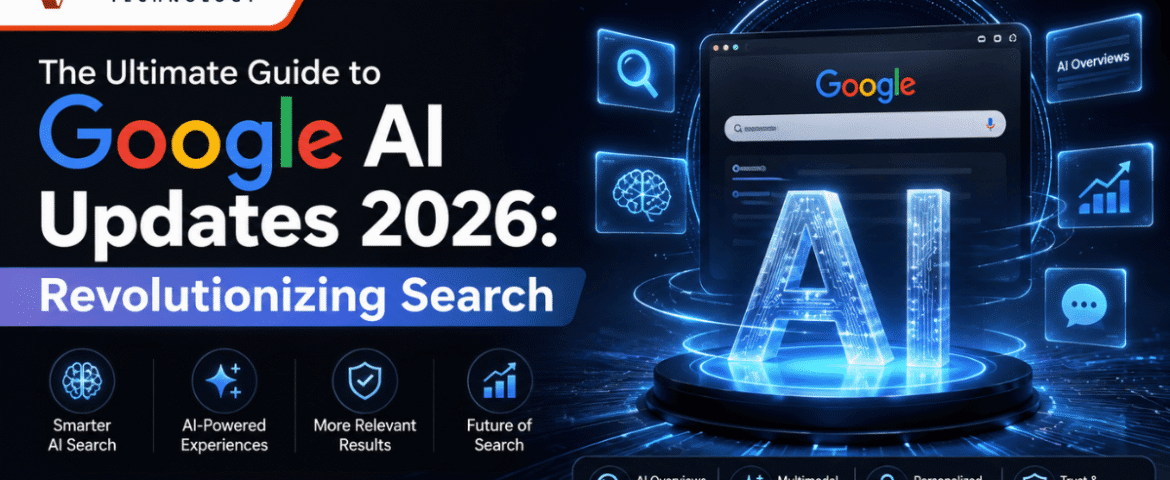
The Ultimate Guide to Google AI Updates 2026: Revolutionizing Search
- By KHUSHI LIMBASIYA
- 0 Comments
- technology Latest News
The digital landscape is undergoing its most dramatic transformation in a quarter of a century. With the rollout of the Google AI Updates 2026, the very foundation of how we retrieve information, manage our daily digital tasks, and interact with the web has shifted. This comprehensive guide explores the monumental changes introduced in 2026, focusing on the sophisticated new capabilities of modern AI, the complete overhaul of the search interface, and the autonomous tools now working seamlessly in the background of your devices. If you want to stay ahead of the curve in understanding digital search visibility and modern digital infrastructure, grasping the nuances of the Google AI Updates 2026 is no longer optional—it is absolutely essential. Introduction to the New Era of Search For over two decades, retrieving information meant typing a few fragmented keywords into a blank text box and scrolling through a list of blue links. The Google AI Updates 2026 have effectively ended that era. The search interface has transitioned from a static index of web pages into a dynamic, highly personalized digital environment. The tech giant has fundamentally re-engineered its core algorithms, prioritizing sophisticated artificial intelligence integrations that do much more than simply answer questions. The focus has moved toward autonomous action, deep contextual reasoning, and seamless cross-application functionality. This shift has massive implications for everyday users seeking quick answers, professionals managing complex workflows, and digital content creators striving for visibility in an increasingly automated web ecosystem. Core Advancements in the Ecosystem The announcements made throughout mid-2026 have proven that the industry is no longer satisfied with reactive chatbots. The ecosystem has evolved to prioritize proactive, multi-step execution. The Complete Redesign of the Search Experience The traditional search interface has received its largest redesign in 25 years. The static search bar is being replaced by a fluid, conversational interface that expands dynamically for complex queries. Instead of forcing users to refine their keywords manually, the interface now suggests intuitive follow-up questions in real-time as you type. AI Overviews now reach over 2.5 billion monthly users, fundamentally changing the traffic distribution of the internet. When you search for a concept, the engine synthesizes multiple perspectives, compiling a cohesive narrative rather than forcing you to click through five different websites. This unified digital experience is the crown jewel of the Google AI Updates 2026. Conversational and Multimodal Inputs We are no longer restricted to text. The modern interface fully embraces multimodal inputs. Users can now combine voice, video, images, and text into a single prompt. For instance, you can upload a video of a broken appliance, add a text prompt asking how to fix a specific visible part, and receive a step-by-step troubleshooting guide complete with generated diagrams. More than 16 percent of searches within the newly optimized AI mode are now multimodal, a number that is growing exponentially as users realize the power of combining different data formats. Deep Dive into the Latest AI Models At the heart of the Google AI Updates 2026 is a brand-new family of sophisticated models designed to balance extreme processing speed with unprecedented reasoning capabilities. The Arrival of Gemini 3.5 Flash The standout release of the year is Gemini 3.5 Flash. Designed to be the default engine powering the vast majority of consumer and professional queries, this model is incredibly fast and highly efficient. It excels in executing complex, multi-step workflows. Whether you need to analyze a 100-page document in seconds or build a working software prototype, this model operates with zero lag. It has been heavily optimized for lower latency, making the conversational experience feel as natural as speaking to a human expert. Multimodal Creation with Gemini Omni While previous models excelled at text generation, Gemini Omni represents the pinnacle of digital creation. This advanced system allows users to input any combination of media—audio, text, video, or images—and generate high-quality video outputs grounded in real-world physics and logic. This is an absolute game-changer for digital creators, educators, and professionals who need to visualize complex data instantly. Background Automation and Intelligent Processes Perhaps the most revolutionary aspect of the Google AI Updates 2026 is the introduction of software that runs autonomously in the background, minimizing the need for constant user input. Continuous Information Monitoring Instead of manually checking for updates on volatile subjects—like flight deals, housing market trends, or real-time sports scores—users can now deploy autonomous background processes. These intelligent routines monitor the web 24/7 on your behalf. When a significant change occurs, they do not just send a raw hyperlink; they synthesize the development, compare different data points, and deliver a comprehensive digest directly to your device. Generative User Interfaces and Dashboards One of the most visually striking features released this year is the Generative UI. When you ask a complex, ongoing question—such as tracking your fitness goals alongside real-time weather data and local gym schedules—the search engine builds a custom, interactive widget specifically for that query. These on-the-fly dashboards remain active, updating continuously, meaning your search results are no longer static pages but personalized, interactive software applications. The Evolution of Digital Assistants The year 2026 also marks the end of an era for legacy voice technology, making way for vastly superior artificial intelligence integrations. Sunsetting Legacy Assistants The tech ecosystem is officially phasing out older voice command software. Starting in September 2026, the legacy digital assistant that users have relied on for years will be discontinued across mobile devices, smartwatches, and wireless headphones. Users attempting to access the old system will be seamlessly transitioned to the newer, more capable Gemini infrastructure. The Shift Toward Autonomous Workflows The replacement technology is not just a voice that answers trivia; it is an autonomous digital helper. With proper permissions, this advanced software can navigate your device, open your email, extract necessary data, and fill out complex web forms on your behalf. It understands on-screen context, meaning you can simply hold a button and say, “Summarize this,” and it will read whatever is currently displayed on your monitor. Impact on Search